
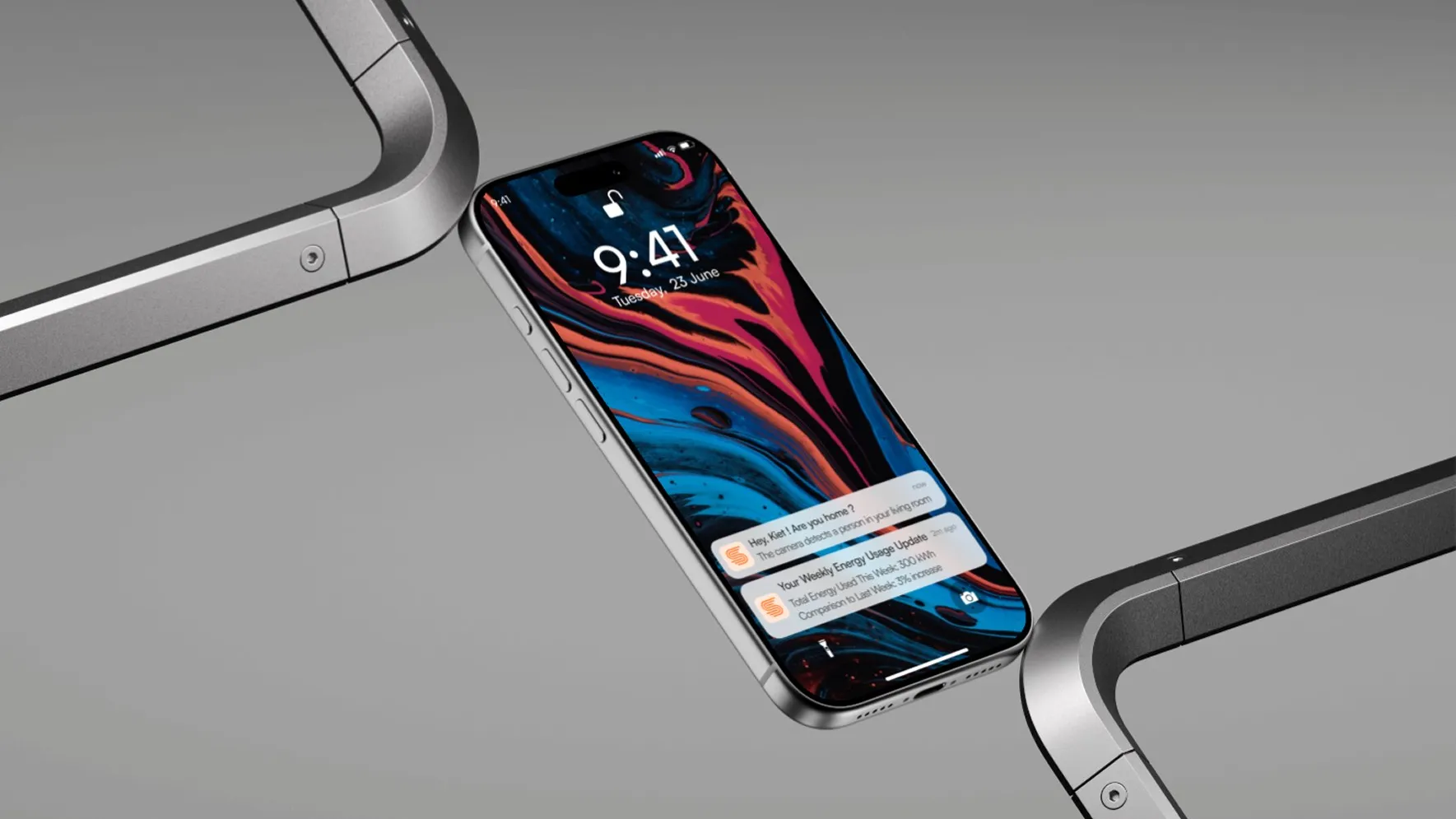
SMART Living Solution
A smart home I helped build in 2020, then redesigned on my own once I knew what had gone wrong.
Overview
The problem
In 2020 my team built a smart home that worked, and nothing crashed. But the first person outside the three of us who tried it, a friend in the lab, couldn’t work out how to turn a light on.
What I did
In 2020 I made the flows and the prototype, and a teammate wrote the code. In 2024, after I’d moved into UX, I redesigned the interface on my own, starting from everything that had gone wrong.
What changed
Everything the Raspberry Pi did out of sight now has a place on the screen, from the 7am scene to whether a light is on. It’s a concept, and it was never built back onto the hardware.
Process
- 01
Build
2020A smart home in a university lab, team of three. I made the flows and the prototype. A teammate wrote the code and ran the demo.
- 02
Lab test
2020A friend in the lab tried the app and got stuck on the lights.
- 03
Scope
Five personas, and an app map of what the redesign had to cover.
- 04
Redesign
2024 to 2025The interface on my own, in Figma: rooms, devices, scenes, family sharing, camera, voice, alerts and energy.
Understand
In 2020 my team built a smart home in a university lab. The housing was cardboard. Inside it were a Raspberry Pi, a camera that recorded and detected motion, sensors for movement, temperature and humidity, a motor that opened and closed the curtains, and two sets of lights. It measured power consumption and showed the figure on a phone. It sent you an alert when the camera saw movement while you were out.
It worked. Nothing crashed, nothing failed, and we were pleased with it.
We had wanted nine devices. Component problems cut it to four. An air conditioner, a television, an audio system, a door lock, a water heater and a set of windows all stayed in the interface long after they stopped being real.
What we built in 2020
Cardboard housing, university lab, team of three. Nine devices planned, four built.
Sensors
Outputs
The one automation
At 7am the curtains opened and the lights came on.
The 2020 material
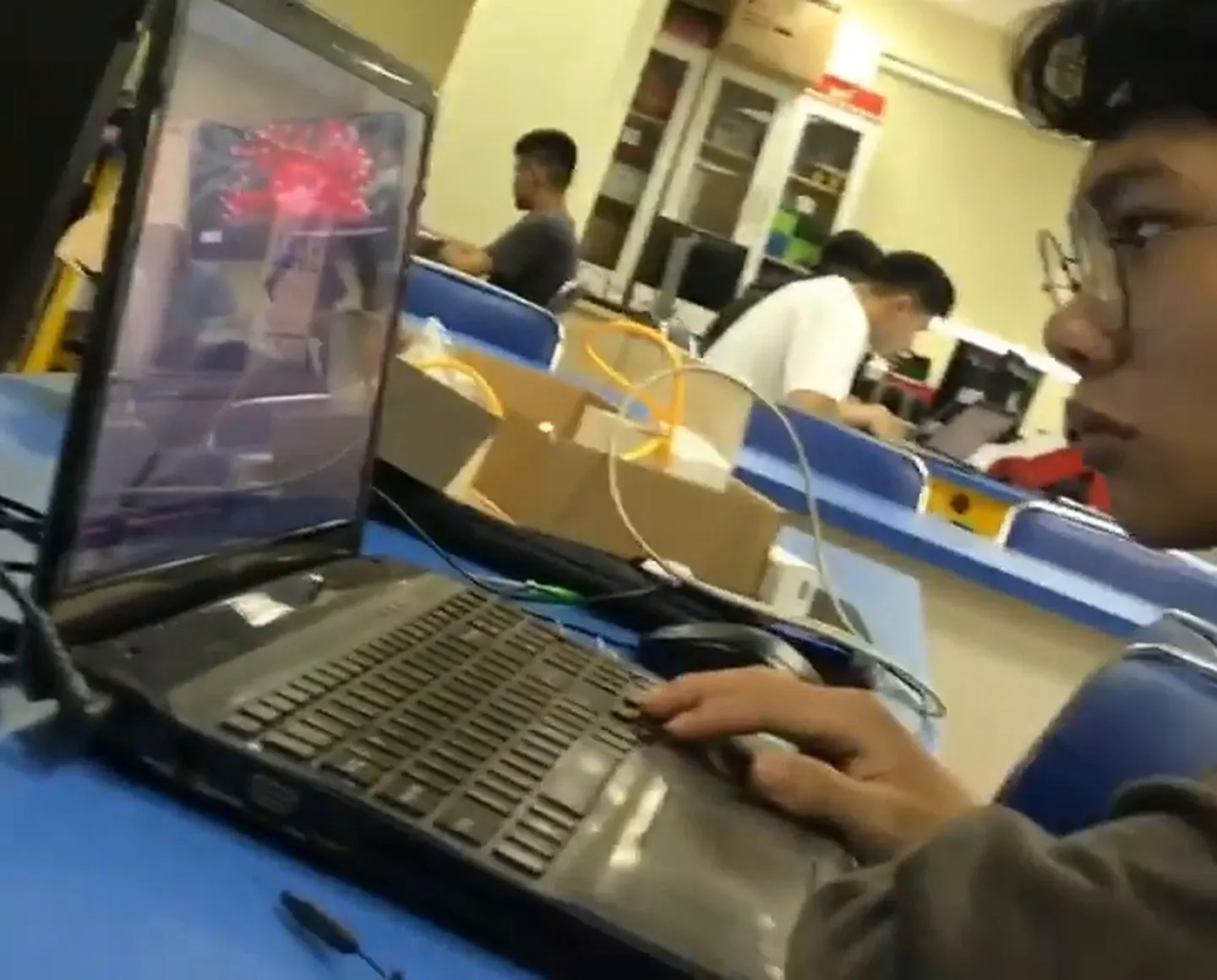
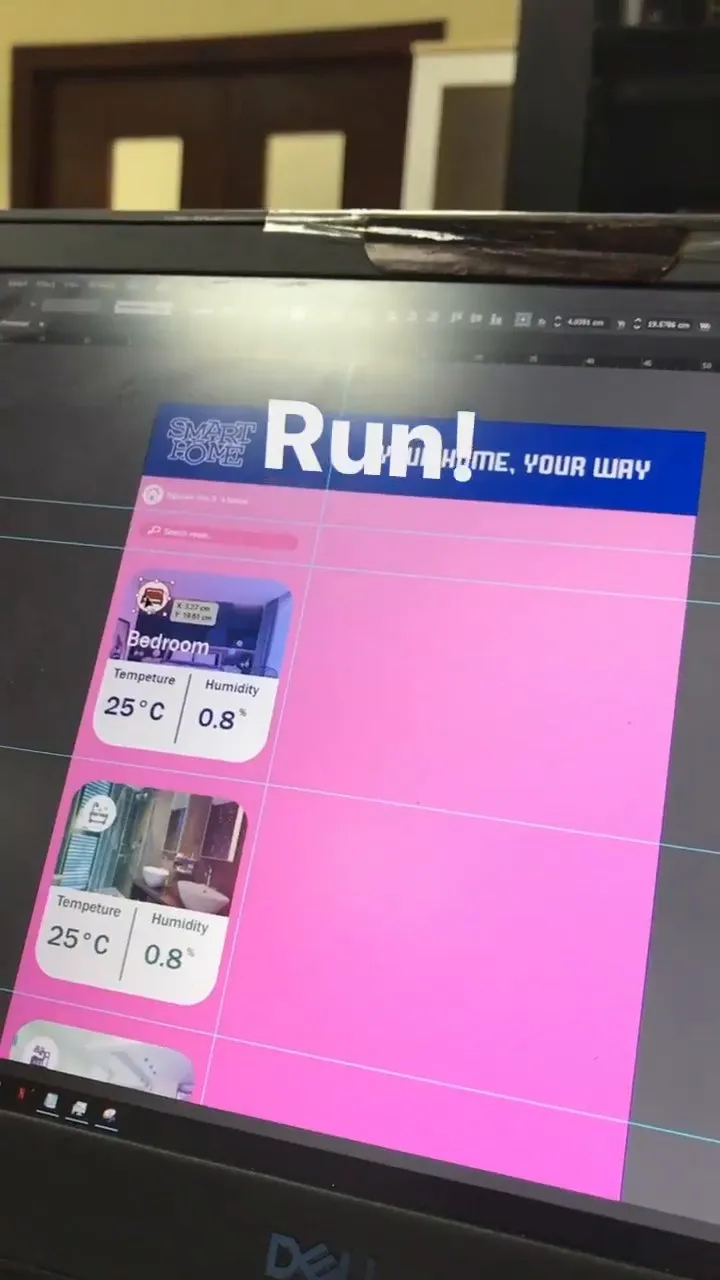
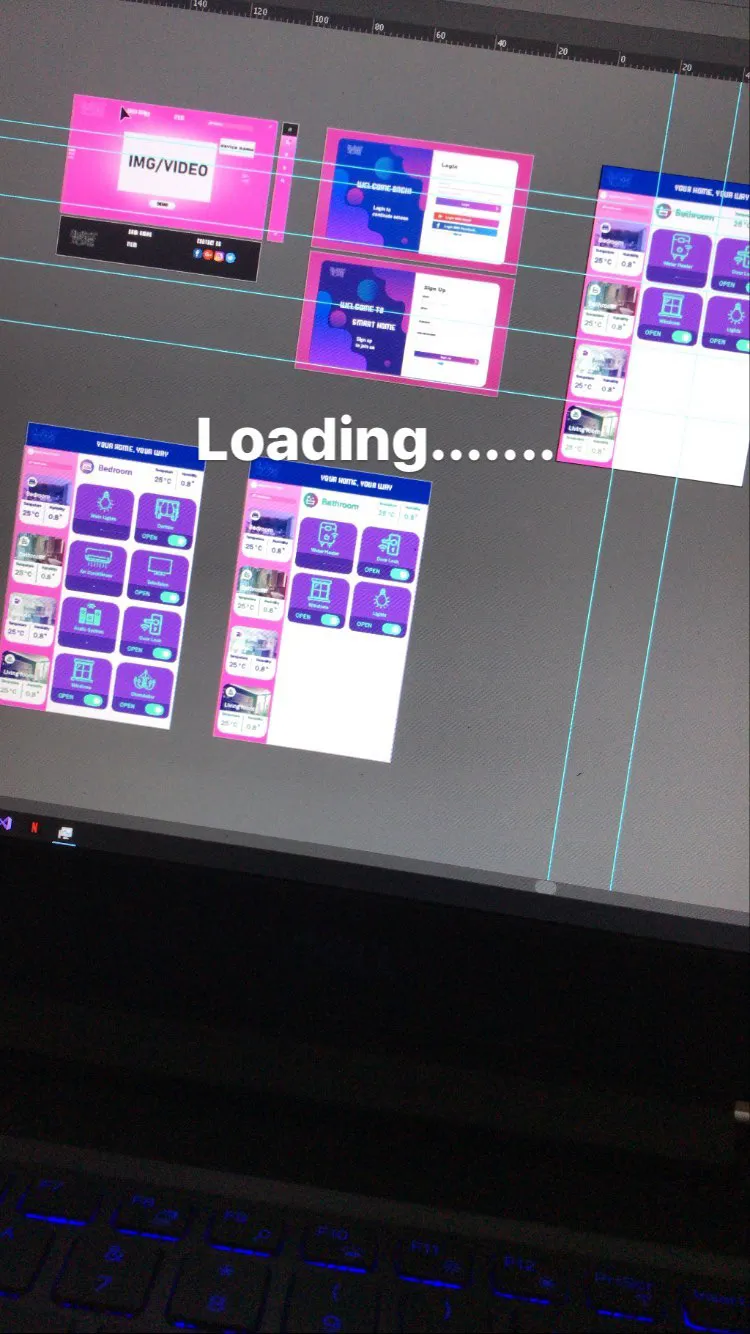
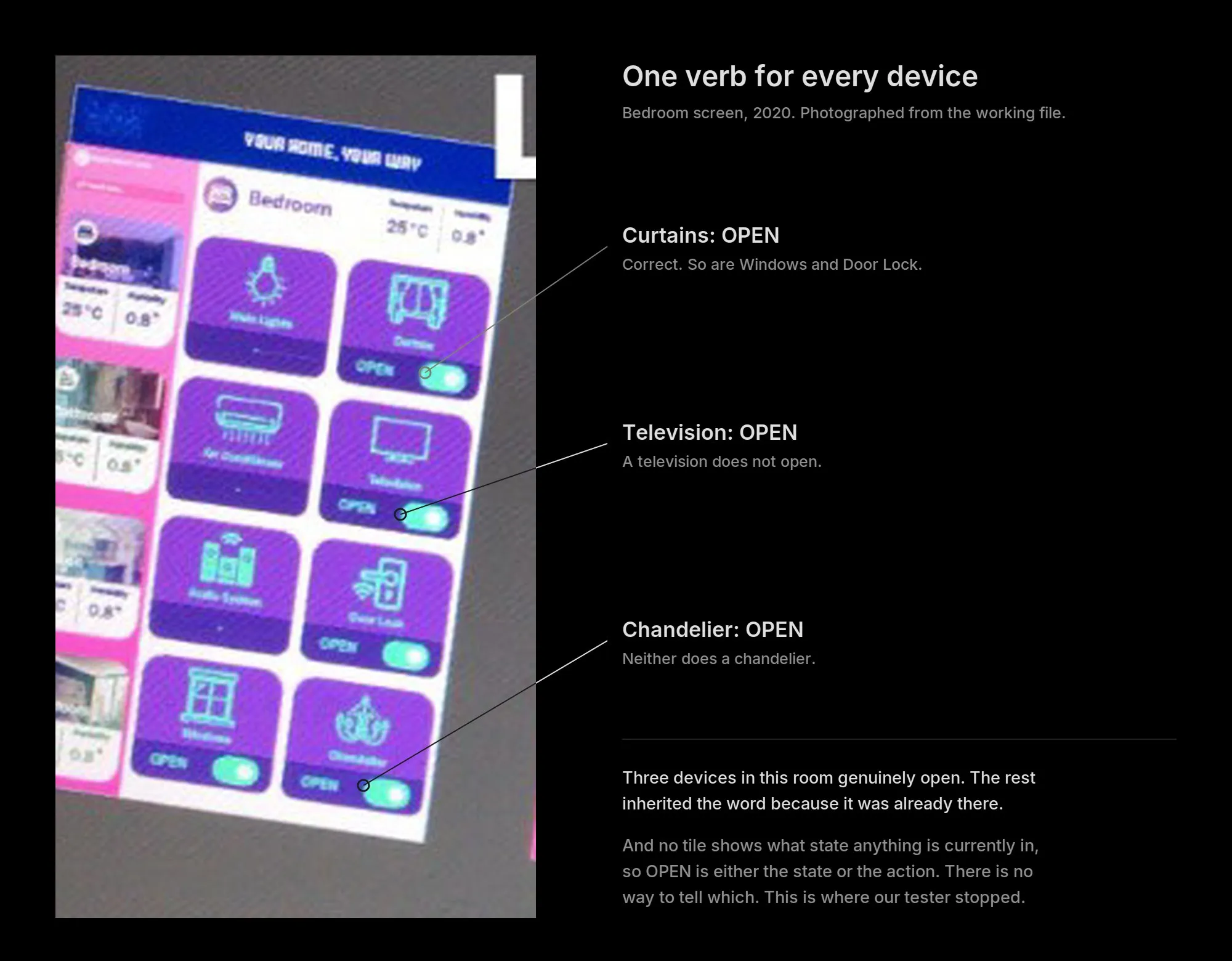
The only images from 2020 are a phone photo of the working design file and a six-second video someone posted to Instagram. The white text is the story’s, not the interface’s: Run! on the monitor, Loading on the laptop. The interface in them is a work in progress, and the finished screens are gone. The blurred cardboard shape on the desk is the housing, unfinished. I haven’t cleaned any of it up.
What we couldn’t do
The first person outside the team couldn’t use it
We asked a friend in the lab to try. He opened the app, found the room, and stopped. He couldn’t work out how to turn a light on.
Looking at the screens now, I’m not surprised. Every device carried the same word. Main Lights said OPEN. Curtains said OPEN. Door Lock said OPEN. Beside each one sat an identical toggle, and nothing on the screen said what state anything was in. OPEN was either what the light was doing or what tapping would do, and there was no way to tell which.
I can see how it happened. We had curtains, windows and a door lock, and for those three OPEN is the right verb. Then the word got applied to the lights, the heater and everything else, because it was already there.
Adding a device meant writing code
There was no path for it in the interface at all.
The one automation we had was invisible
At seven in the morning the curtains opened and the lights came on. It ran every day. It lived in the Raspberry Pi, and nobody outside the three of us knew it existed, let alone how to change it.
Six years later I asked my teammate how it was triggered, and neither of us can reconstruct it. If the people who wrote it can’t recall how it worked, the person living in the house never stood a chance. That’s the argument for putting automations on the screen, and I didn’t need to make it, because the project made it for me.
Voice control was tried and dropped
It was too buggy to demonstrate, so we dropped it and didn’t mention it again.
Define
The hardware worked. What it was doing, and how to change it, never reached the screen.
So the redesign follows one rule: anything the house does, the person living there can see on the screen and change.
I wrote five personas, each wanting a smart home for a different reason. They’re assumptions, based on 16 people I asked at random, and between them they set what the redesign had to cover.
Five personas
| Persona | Wants | Where it lives in the redesign |
|---|---|---|
| Alex, 30, software engineer | Advanced automation, and strong data privacy | Scenes, a schedule on every device, two-factor sign-in |
| Thanh, 20, stay-at-home parent | Her children’s safety, and routines for each family member | Family sharing with permissions for each device, and safety alerts |
| Hoang, 32, marketing manager | Control of the home from work, with notifications and voice | Live camera, unlocking the door, voice commands |
| Shinjuku, 40, IT | Clear icons, voice and a simple setup, and to know how his data is used | Adding a device in a few guided steps, and voice |
| Lam, 25, freelancer | Lower energy use and bills, with proof the app helps | Energy management, with use over time |
Two ways to automate, on purpose
Scenes group devices. Each device also keeps its own schedule, manual or automatic. The duplication is deliberate: if someone wants the bedroom light off at midnight, they should be able to say so on the light itself instead of building a scene to hold one instruction. Grouping is what scenes are for. They shouldn’t be a gate you pass through to reach a single device.
Design
Every part of the new interface answers something from that list.
- OnboardingThree intro cards
- Sign up or sign inEmail, Google, Facebook or Apple. Password or Face ID
- Home managementSwitch homes. Unlock the main door with a PIN or Face ID
Dashboard
- Weather and indoor climate
- Rooms, each with camera, energy, scenes and devices
- All devices
- Add a room, a device or a scene
Family
- Shared rooms
- Members as owner, family or guest
- Permissions for each device
- Invite by email
Camera
- Every camera, room by room
- Live view and event history
- Record, capture and speak
- Camera settings
Settings
- Profile
- Notifications
- Voice assistant
- Energy management
- Two-factor authentication
- Language, updates, FAQ and support
Scenes
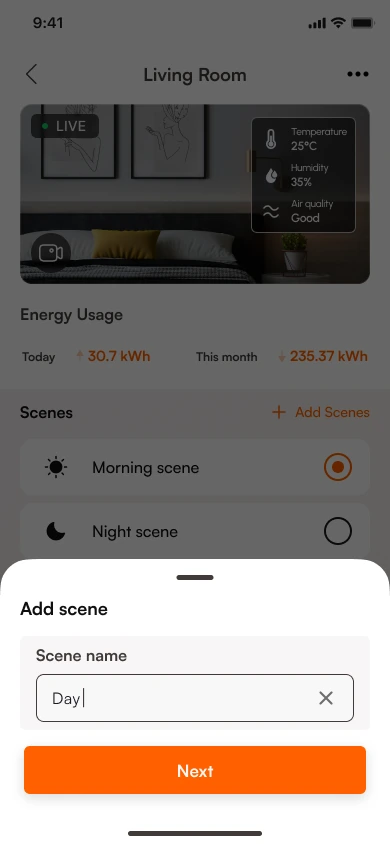
Morning scene and night scene are named, selectable things, with an add button beside them. The behaviour is the one that ran in 2020. The difference is that a person living in the house can see it, choose it and make another one.
Adding a device
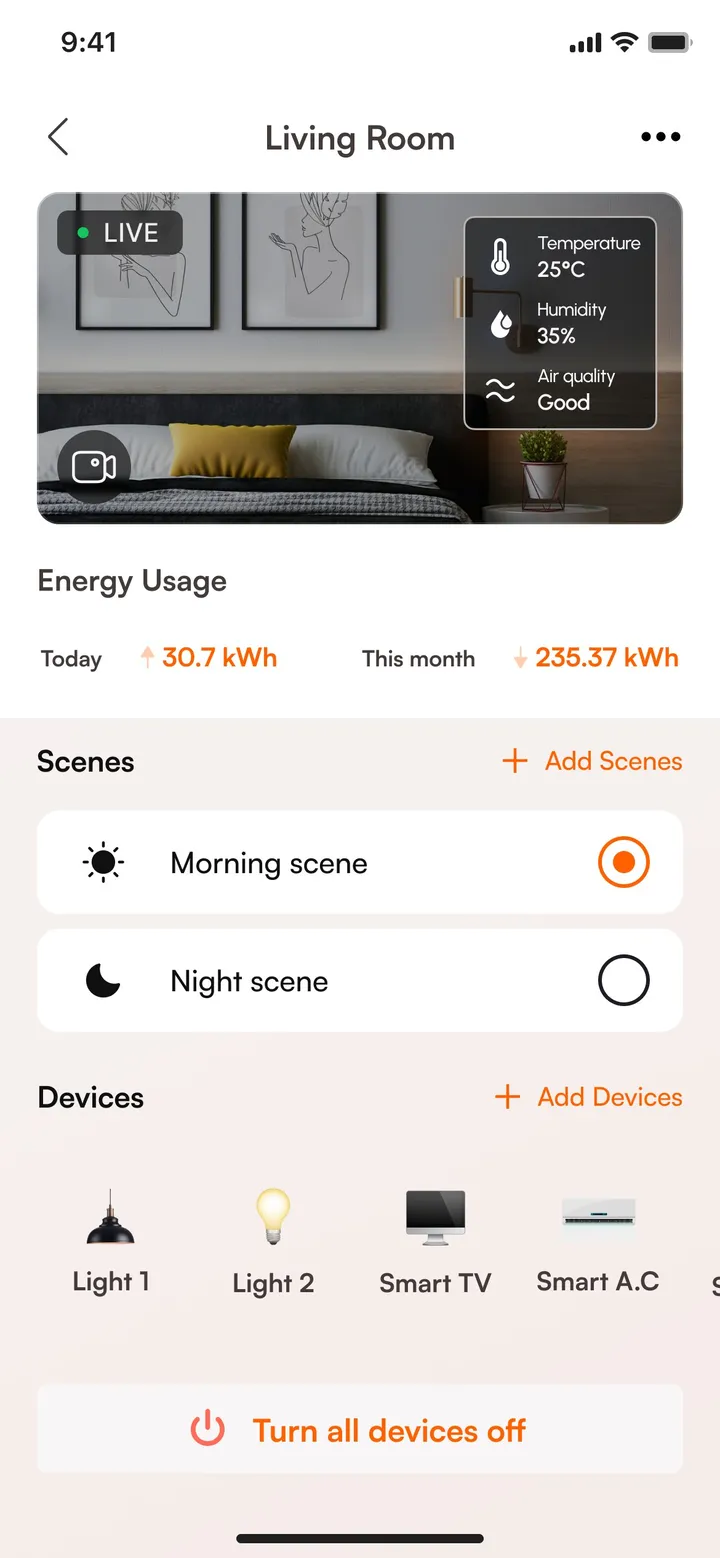
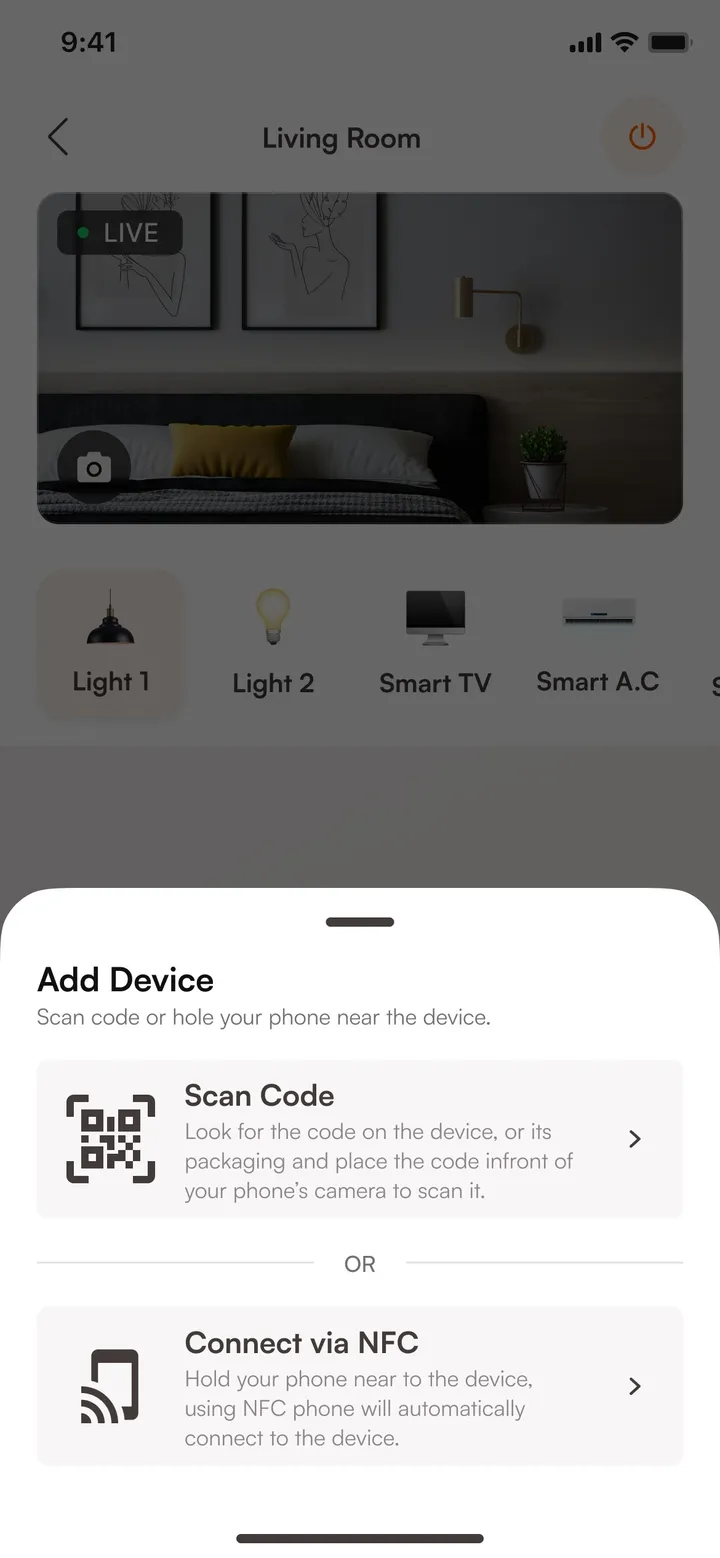
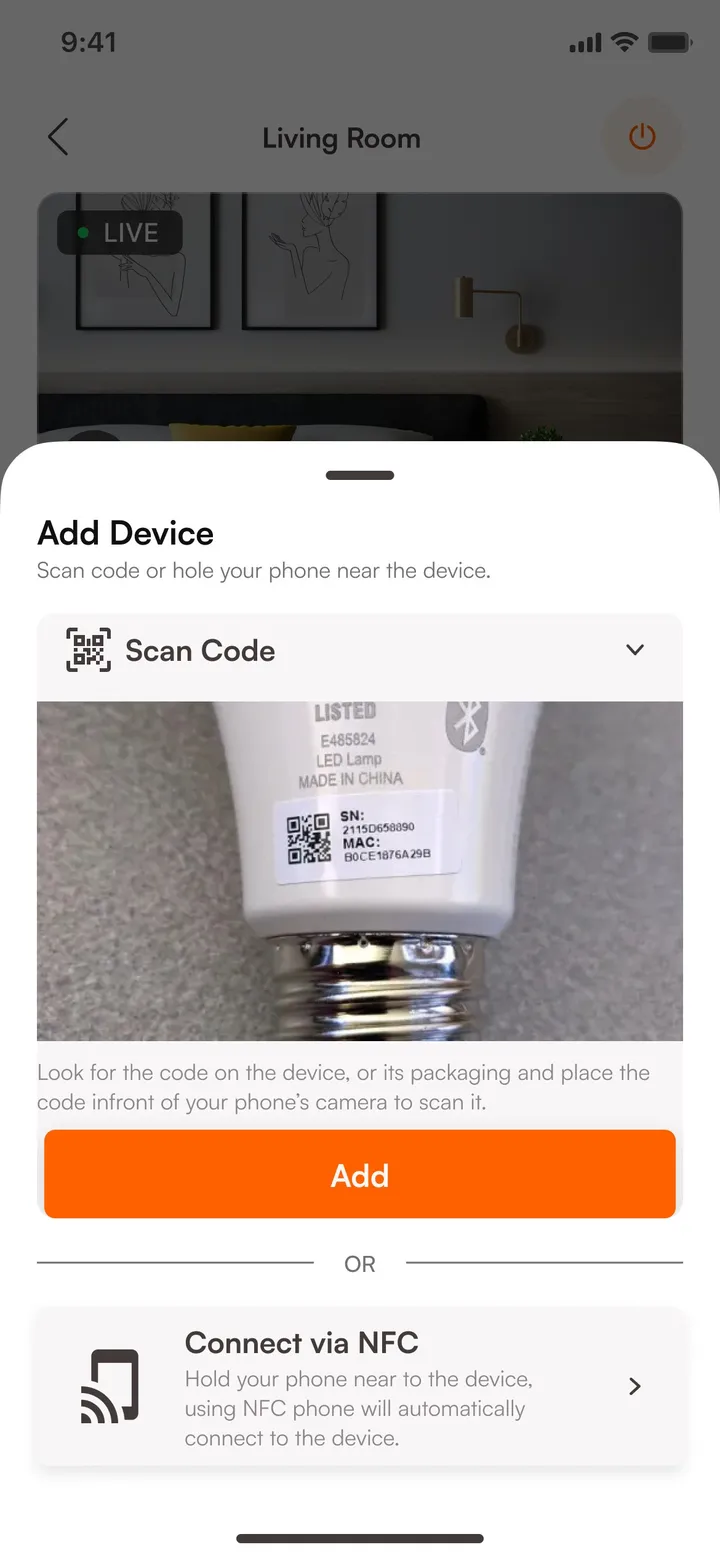
Add devices sits right next to the devices it adds to. You scan the code on the device or connect by NFC, choose a room, give it a name, and it’s in.
Making a scene
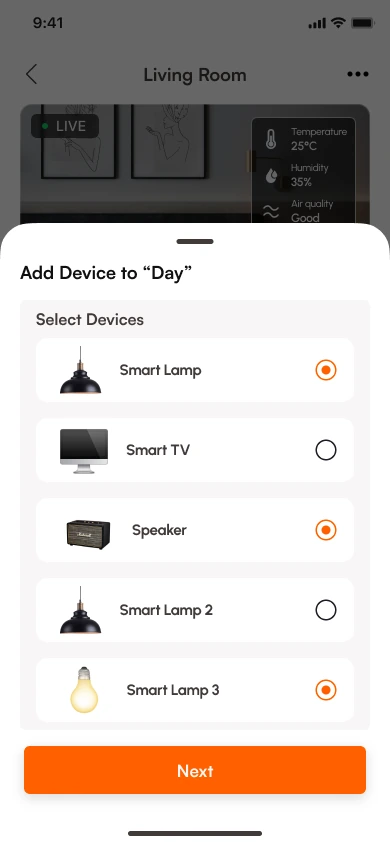
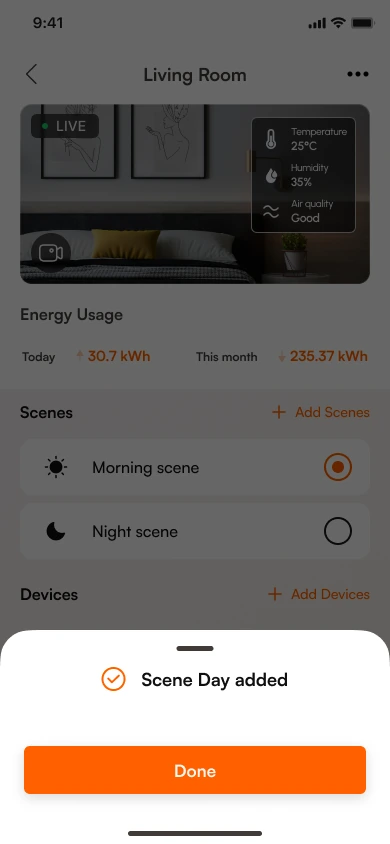
A new scene takes three steps, each a sheet over the room: name it, pick its devices, done. The Day scene here has two lamps and the speaker.
Device state
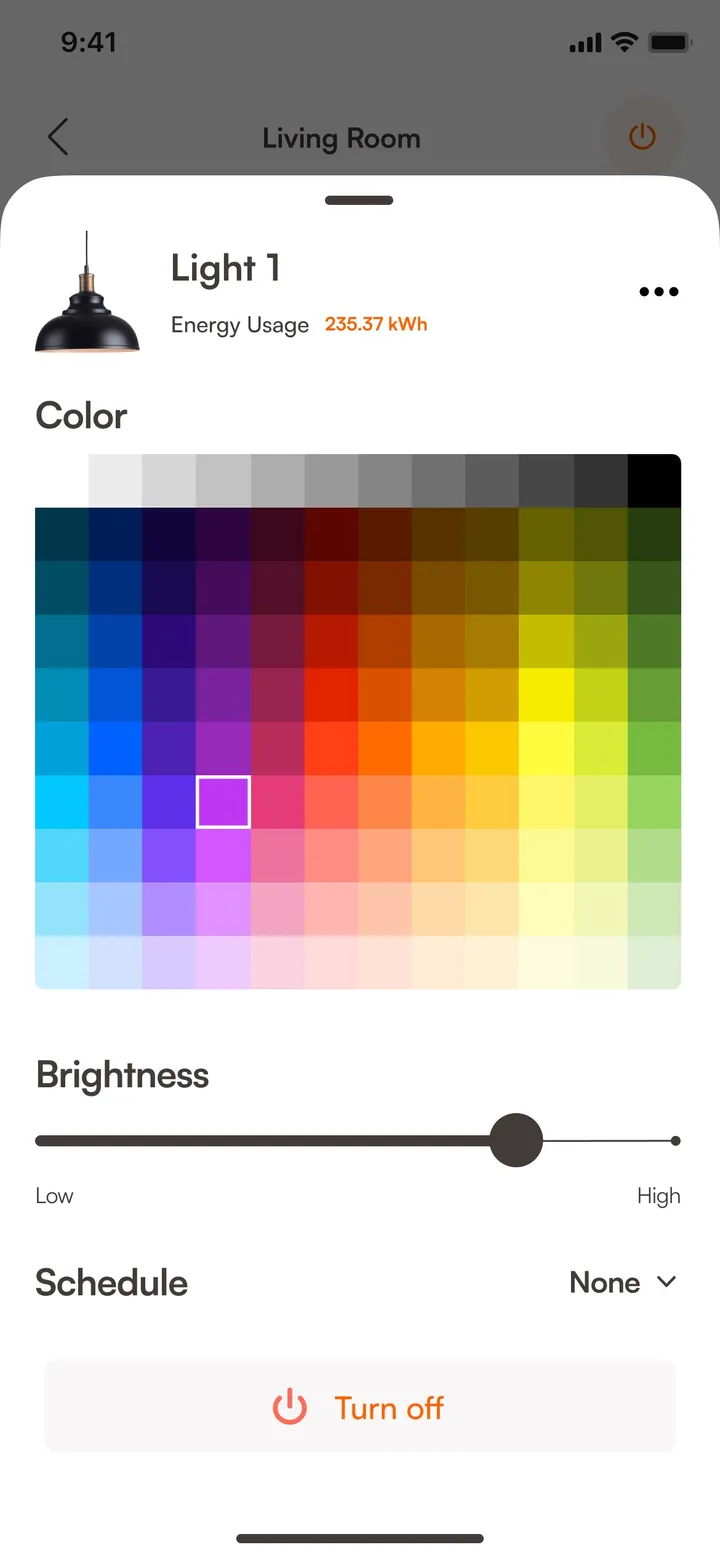
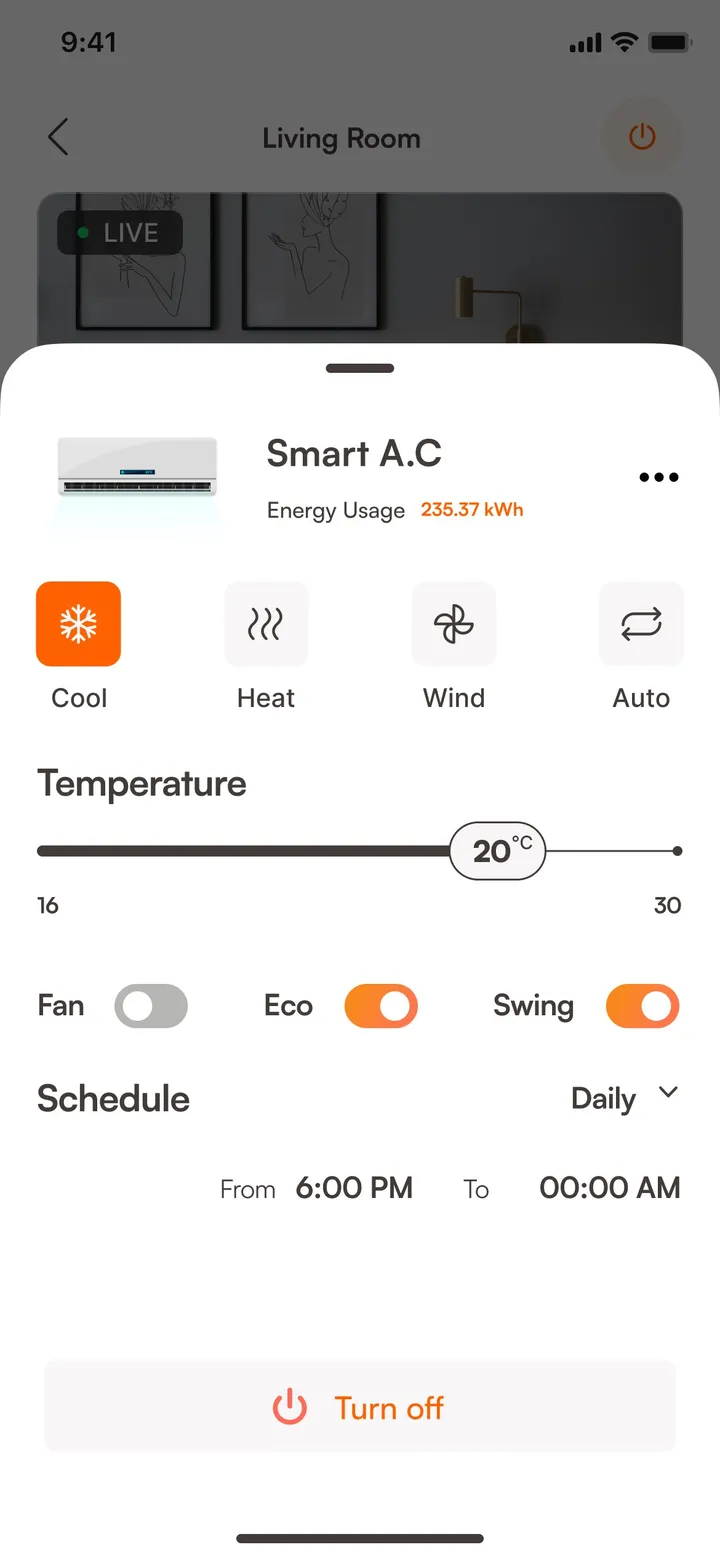
The control for a light reads Turn off while it’s on, so the label names the action and the state follows from it. The 2020 screen used OPEN for every device, and nothing said whether that word was the state or the action. The air conditioner gets its own controls, with a mode and a target temperature, because a thermostat and a switch are different objects.
Removing a device
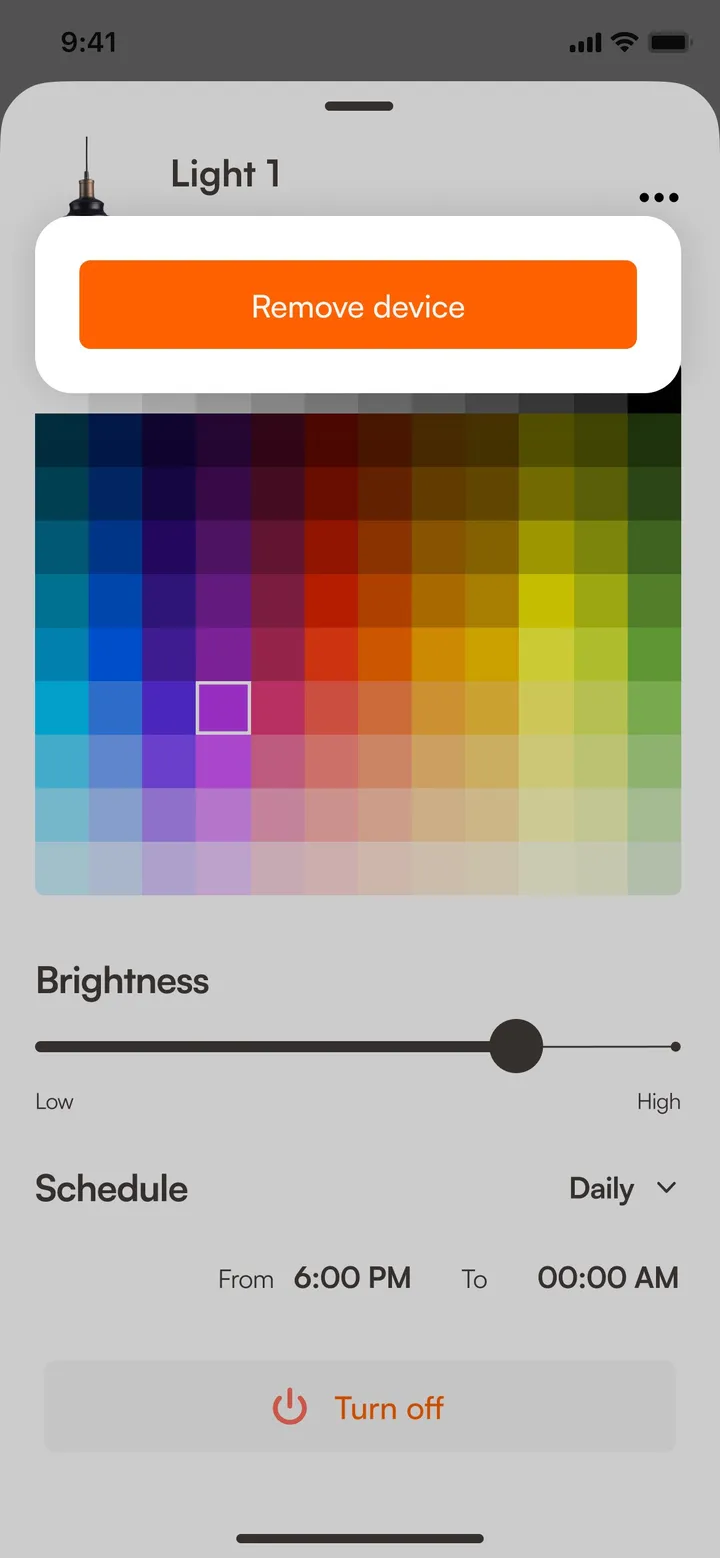
Remove device sits in each device’s own menu, and afterwards the app confirms the device is gone. In 2020, removing a device meant editing the code.
The TV and the speaker
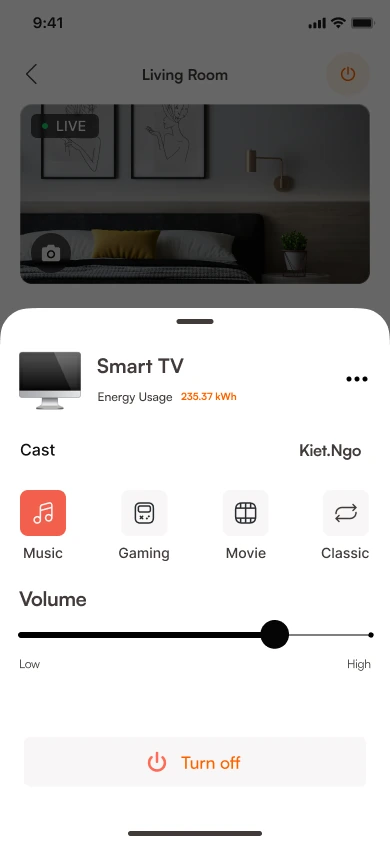
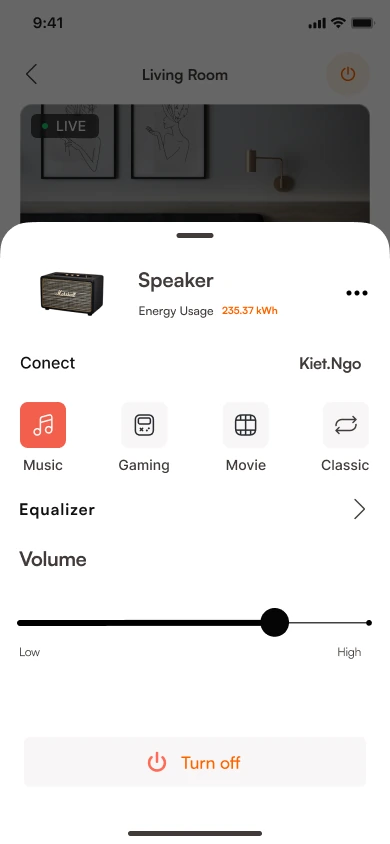
The TV and the speaker get their own controls: four modes (Music, Gaming, Movie, Classic), a volume slider and who’s connected. The speaker adds an equalizer. Each sheet still ends in Turn off, like the light’s.
Voice
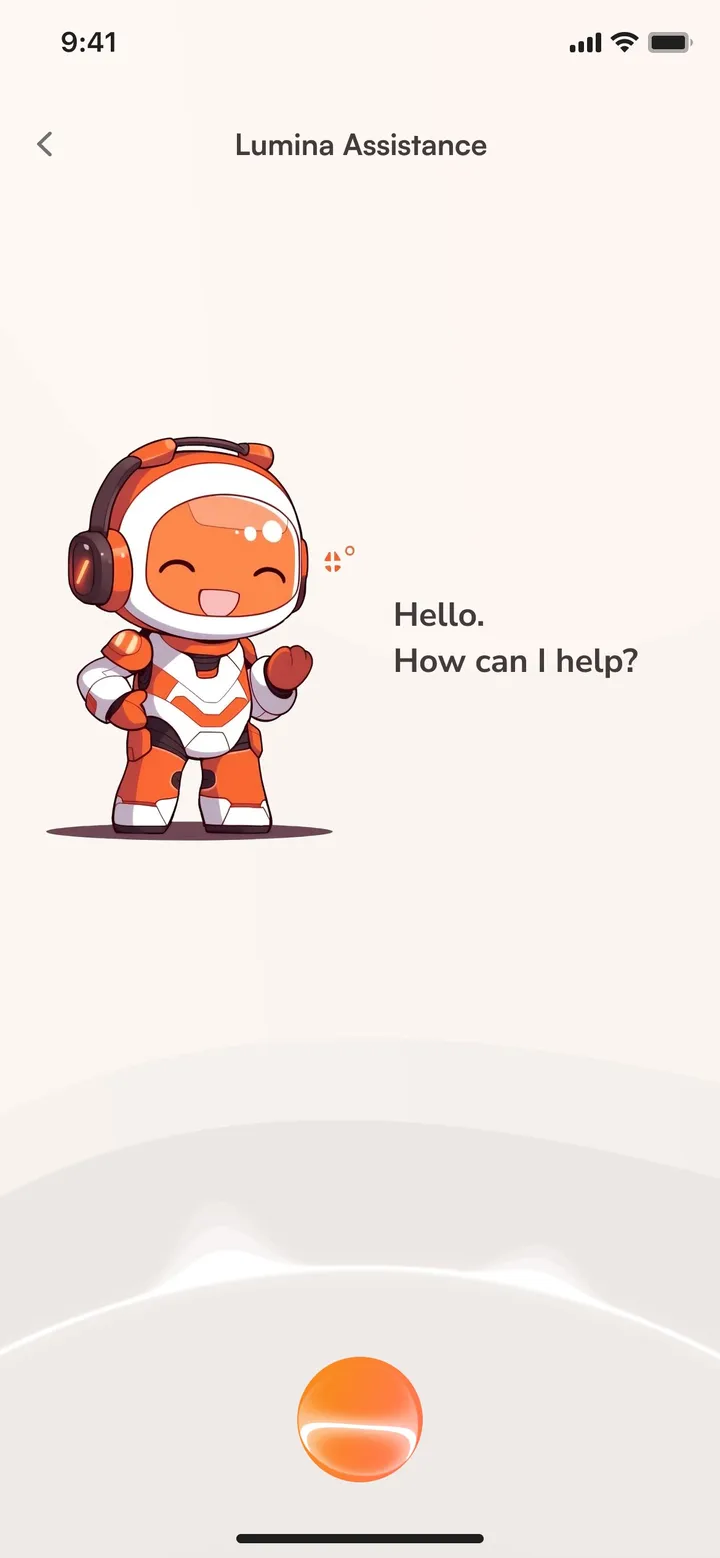
Voice runs through the whole app this time, with its own button in the middle of the tab bar and a wake phrase in settings. The engineering that made it too buggy in 2020 is still unsolved. What’s here is the part a person would see and say.
Alerts
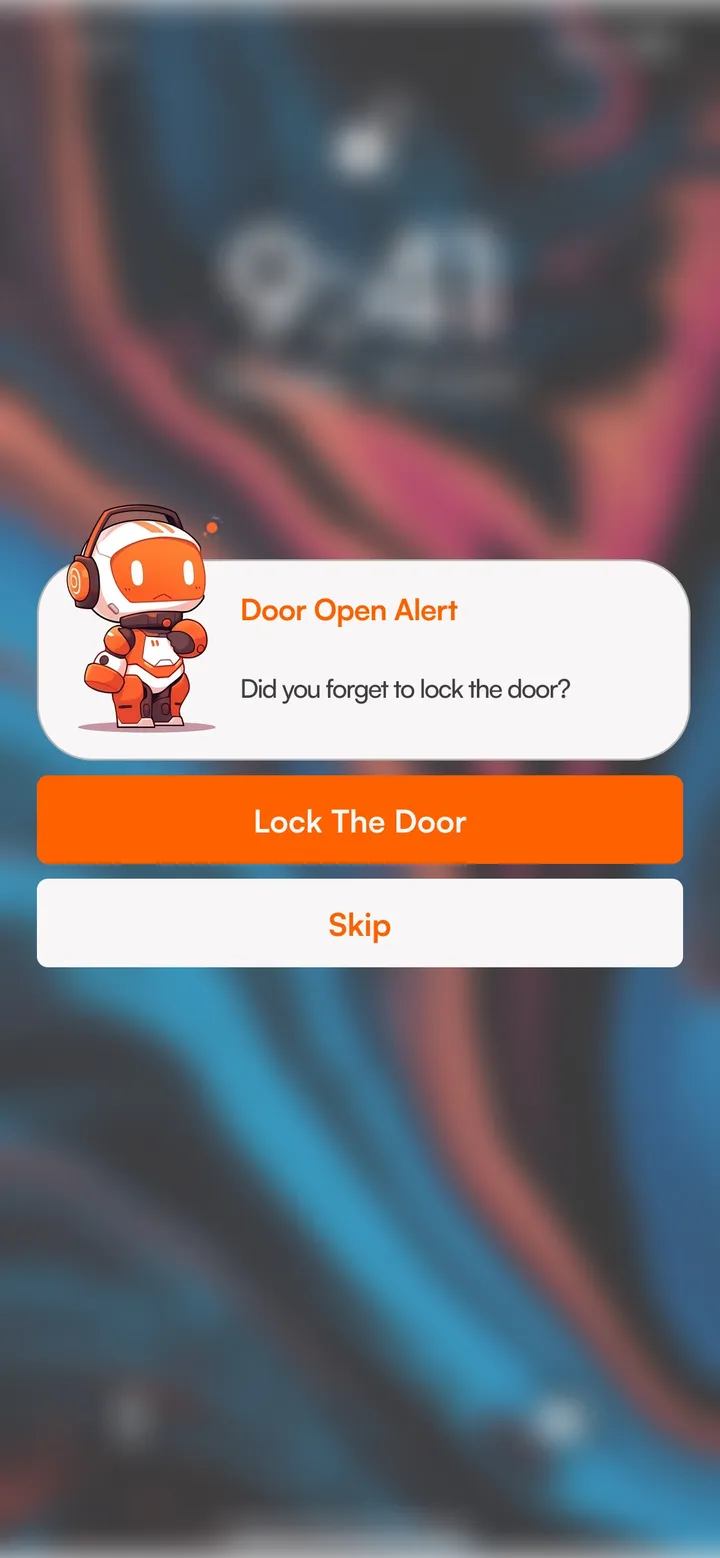
The camera alert already worked in 2020. In the redesign an alert comes with its next step, like Lock the door when the door has been left open.
Energy
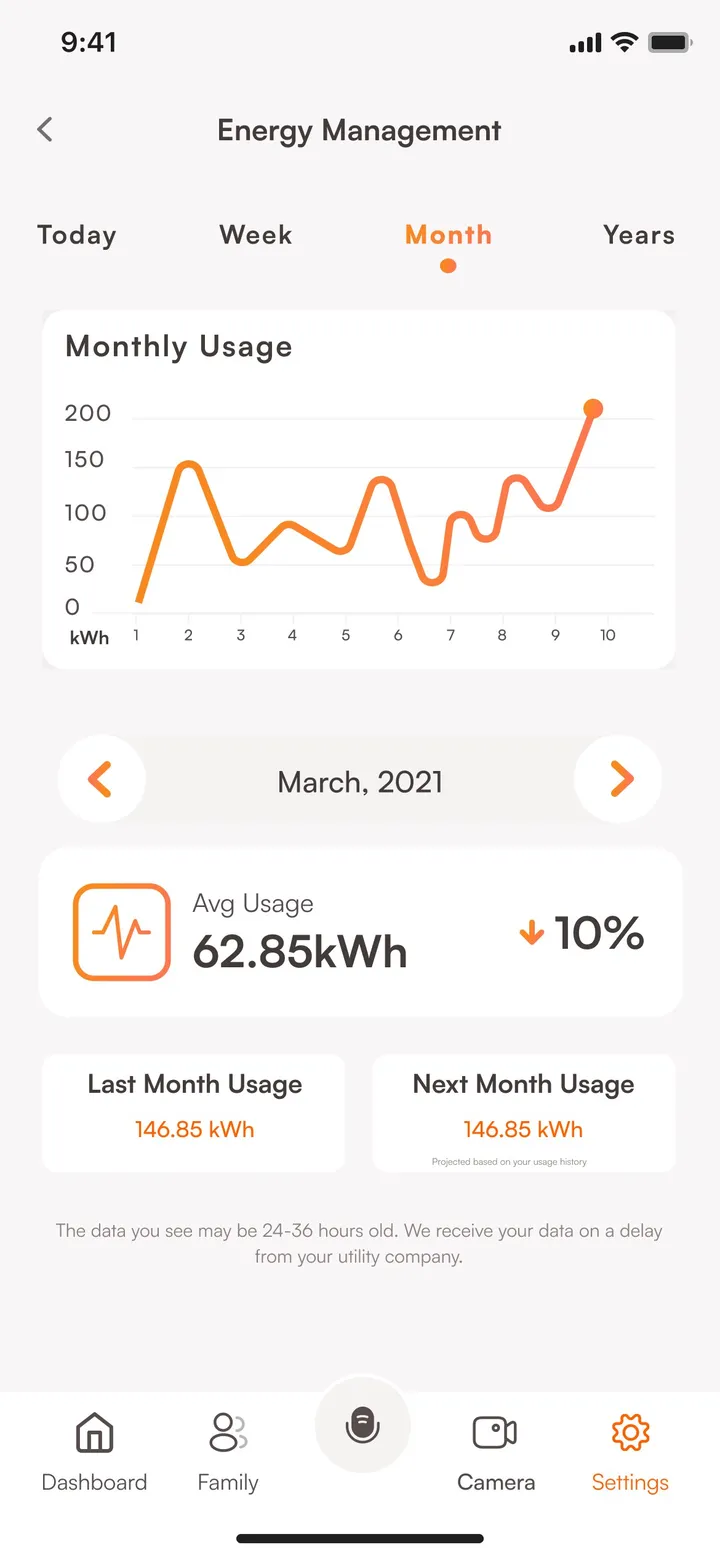
In 2020 power consumption was a number on a phone, built by a teammate, and it told you the figure and nothing else. Now it shows use over time and compares each month with the last.
Outcome
Every item on the 2020 list has an answer on the screen. None of it was built back onto the hardware.
What’s still unsolved
The redesign is an interface for a system that no longer exists, made by someone who now knows what he was looking at the first time.
The curtain motor never made it into the redesign either. It worked in 2020, and I left it out five years later without noticing, which is the same kind of mistake as the one this case study is about.
The redesign hasn’t been tested either. Nobody has sat down with it and tried to turn on a light, which is exactly the test the 2020 version failed.